> ## Documentation Index
> Fetch the complete documentation index at: https://firecrawl-claude-eager-dijkstra-ul56gh.mintlify.site/llms.txt
> Use this file to discover all available pages before exploring further.
# Flowise
> FlowiseでFirecrawlの使い方を学ぶ
Flowise のワークフローで Web データを同期する
Firecrawl は [Flowise(チャットフロー・ビルダー)](https://flowiseai.com/) 内で利用できます。このページでは、Flowise 内での Firecrawl ブロックの設定と使い方を紹介します。
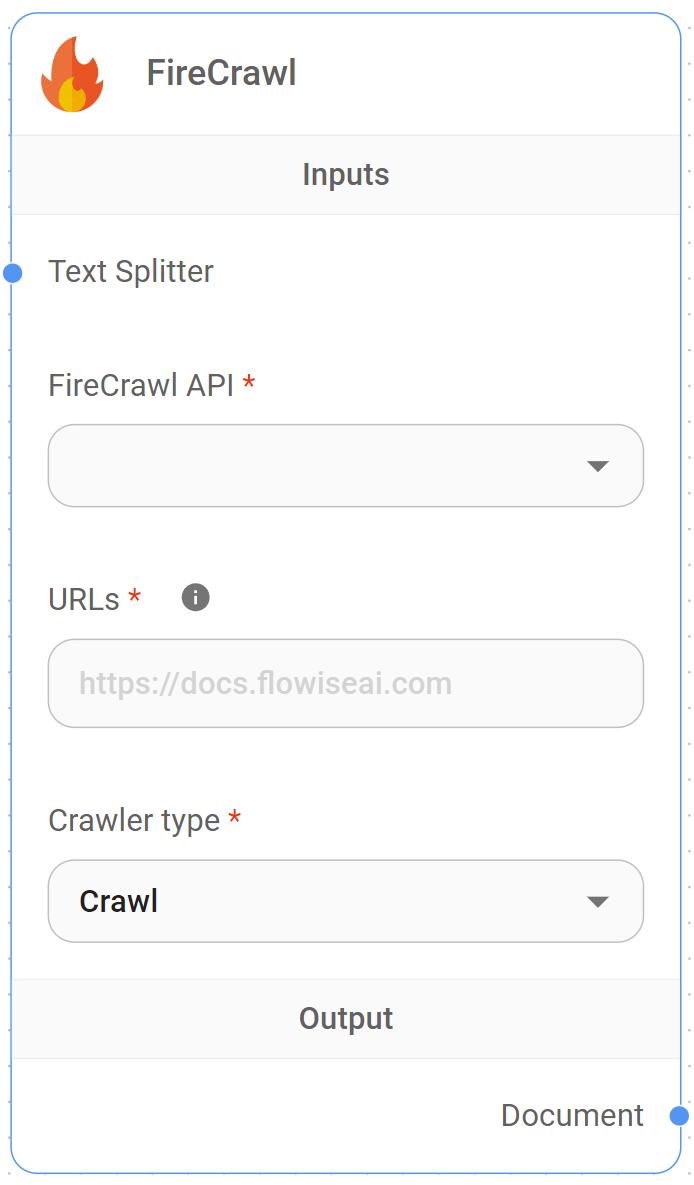
Firecrawl ブロックでのクロール
1. Firecrawl アカウントにログインして API キーを取得し、ブロックに入力します。
2. (任意)Text Splitter を接続します。
3. クロールモードを選択し、対象 URL 配下のページをクロールします。
4. クロール対象の URL を入力します。
5. 生成されたドキュメントをワークフローで利用します。
Firecrawl ブロックでのスクレイピング
1. Firecrawl アカウントにログインして API キーを取得し、ブロックに入力します。
2. (任意)Text Splitter を接続します。
3. 単一ページを取得するスクレイプモードを選択します。
4. スクレイプ対象のURLを入力します。
5. 取得したドキュメントをワークフローで使用します。
This documentation is built and hosted on [Mintlify](https://mintlify.com), a developer documentation platform.